


OPC UA/DA-Server für Dataforth isoLynx, Kepware Server, Dataforth isoLynx - License type: Subscription license for 1 year

Dataforth isoLynx - OPC UA/DA driver for isoLynx SLX100. It provides the acquired data to the higher-level systems via OPC UA/DA, and, after purchasing the appropriate plug-in, also via MQTT, REST or archives it in ODBC databases. For further work with the data from the OPC Server, archiving or connecting them to IT/OT systems, we recommend using the OPC Router program. More
Code: KWS-DFILX0-SUB
Dataforth isoLynx - OPC UA/DA driver for isoLynx SLX100. It provides the acquired data to the higher-level systems via OPC UA/DA, and, after purchasing the appropriate plug-in, also via MQTT, REST or archives it in ODBC databases. For further work with the data from the OPC Server, archiving or connecting them to IT/OT systems, we recommend using the OPC Router program. More
Code: KWS-DFILX0-SUB
Options 9
| License type | Code | Verfügbarkeit | Price Exkl. MwSt. | |
|---|---|---|---|---|
| Subscription license for 1 year | KWS-DFILX0-SUB | In stock |
594 EUR
|
|
| Subscription license for 2 years | KWS-DFILX0-SUB 2x | In stock |
1 188 EUR
|
|
| Subscription license for 3 years | KWS-DFILX0-SUB 3x | In stock |
1 782 EUR
|
|
| Perpetual (permanent) license with 1 year support | KWP-DFILX0-PRD + KWM-DFILX0-ATT | In stock |
1 814 EUR
|
|
| Perpetual license with 2 years support | KWP-DFILX0-PRD + 2x KWM-DFILX0-ATT | In stock |
2 128 EUR
|
|
| Perpetual license with 3 years support | KWP-DFILX0-PRD + 3x KWM-DFILX0-ATT | In stock |
2 442 EUR
|
|
| Perpetual license support extension for 1 year | KWM-DFILX0-ATT | In stock |
314 EUR
|
|
| Perpetual license support extension for 2 years | KWM-DFILX0-ATT 2x | In stock |
628 EUR
|
|
| Perpetual license support extension for 3 years | KWM-DFILX0-ATT 3x | In stock |
942 EUR
|
Dataforth isoLynx - OPC UA/DA driver for isoLynx SLX100. It provides the acquired data to the higher-level systems via OPC UA/DA, and, after purchasing the appropriate plug-in, also via MQTT, REST or archives it in ODBC databases. For further work with the data from the OPC Server, archiving or connecting them to IT/OT systems, we recommend using the OPC Router program.
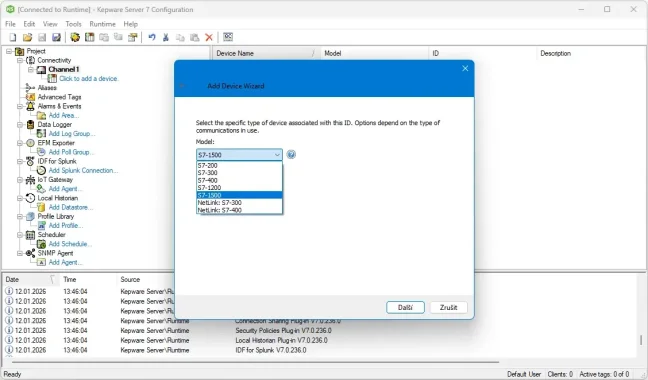
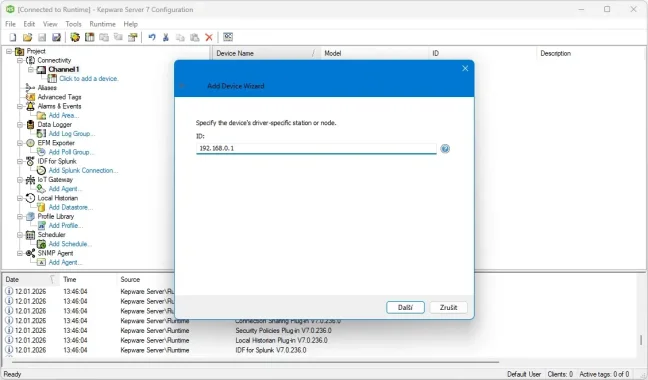
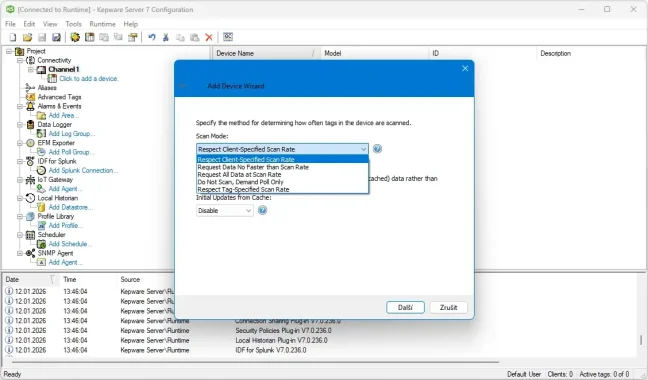
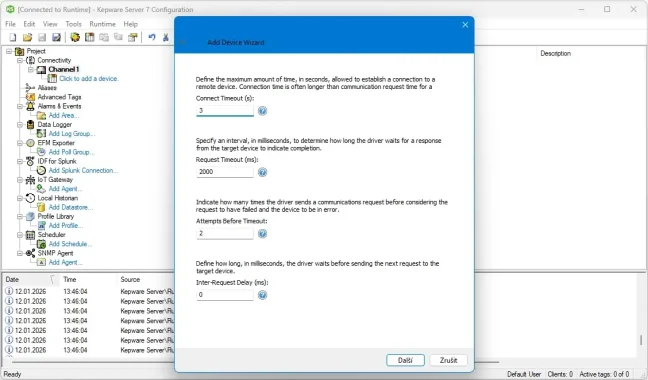
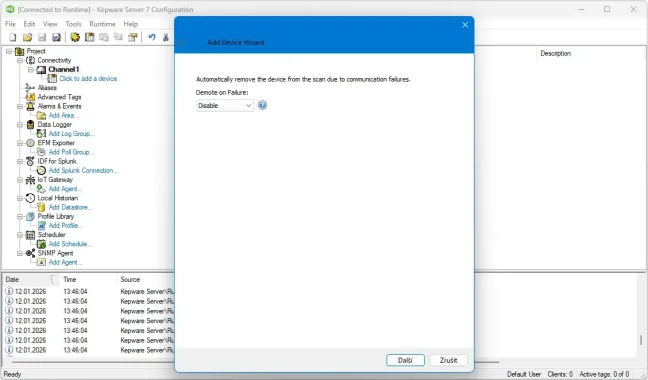
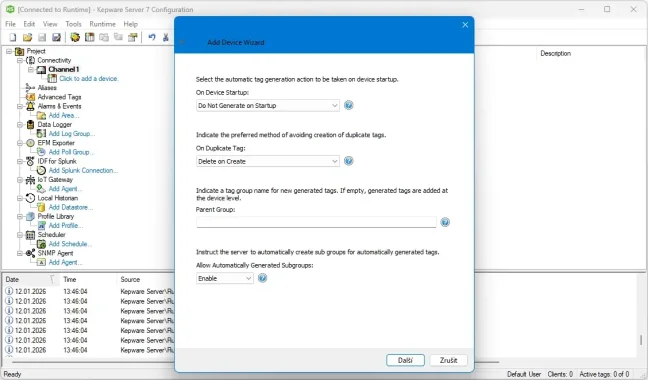
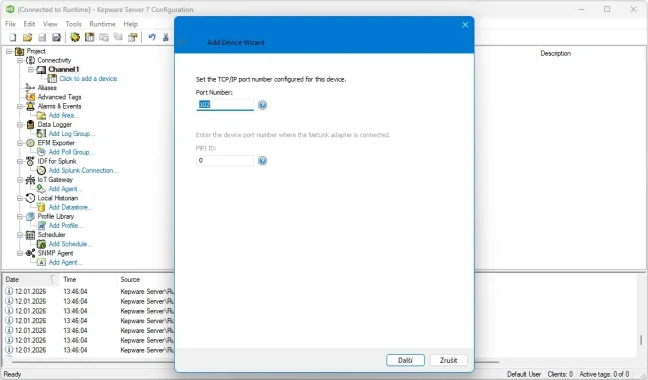
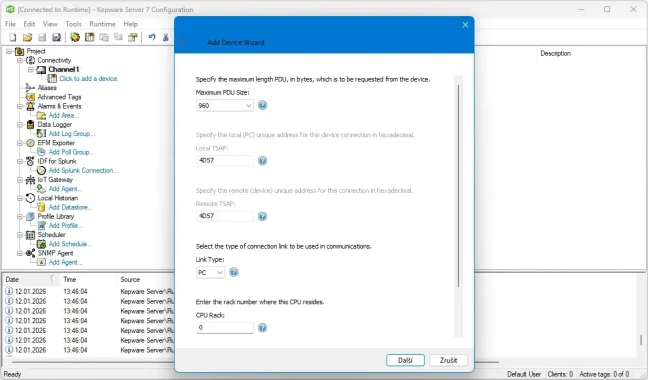
The Dataforth isoLynx device driver providesdata exchange between OPC clients and isoLynx SLX100 data acquisition systems. Kepware automatically optimizes your data acquisition based on client demand. Data integrity is ensured with our extensive error handling.
Why use KEPServerEX?
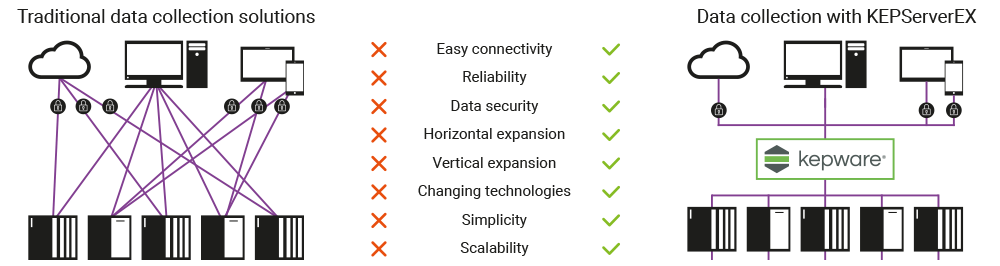
Licensing and Support for KEPServerEX
Annual Rental - Subscription License
- KEPServerEX can be rented as a service for at least one year.
- The rental includes complete technical support and access to all updates that come out during the subscription period. Therefore, we recommend this method.
- The initial price is 60 % less compared to a one-time software purchase.
- You choose only the drivers or plug-ins you will use, so you don't pay for any features unnecessarily. You are free to purchase them anytime in the future.
One-time purchase - Perpetual License
- Another option is to pay for the software once. This historically older licensing method requires a much larger initial investment.
- If you want new updates and technical support, you won't avoid annual fees anyway because the price includes updates and support for the first year only.
- Update & Support (Support Renewal) is recommended to be renewed periodically before expiration. Only with valid support can our technicians help you immediately in case of problems.
Update & Support
When purchasing KEPServerEX under the Perpetual License model, the Update & Support service is included in your license for the first year after purchase.
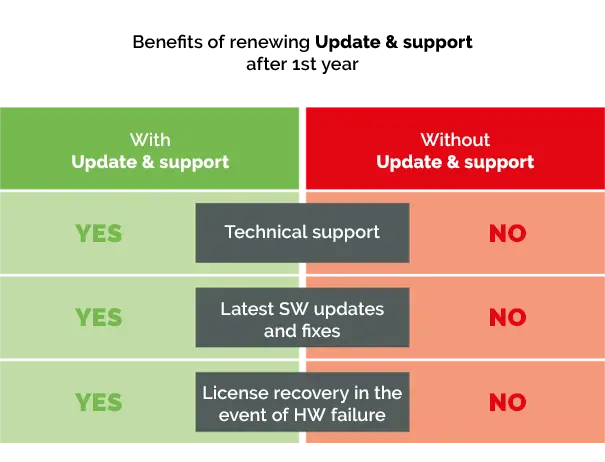
Why choose the Annual Subscription License or extend Update & Support for multiple years?
By purchasing a multi-year license, you eliminate the need for annual renewals and ensure that you are not affected by yearly price increases.
OPC Server KEPServerEX in OT/IT architecture
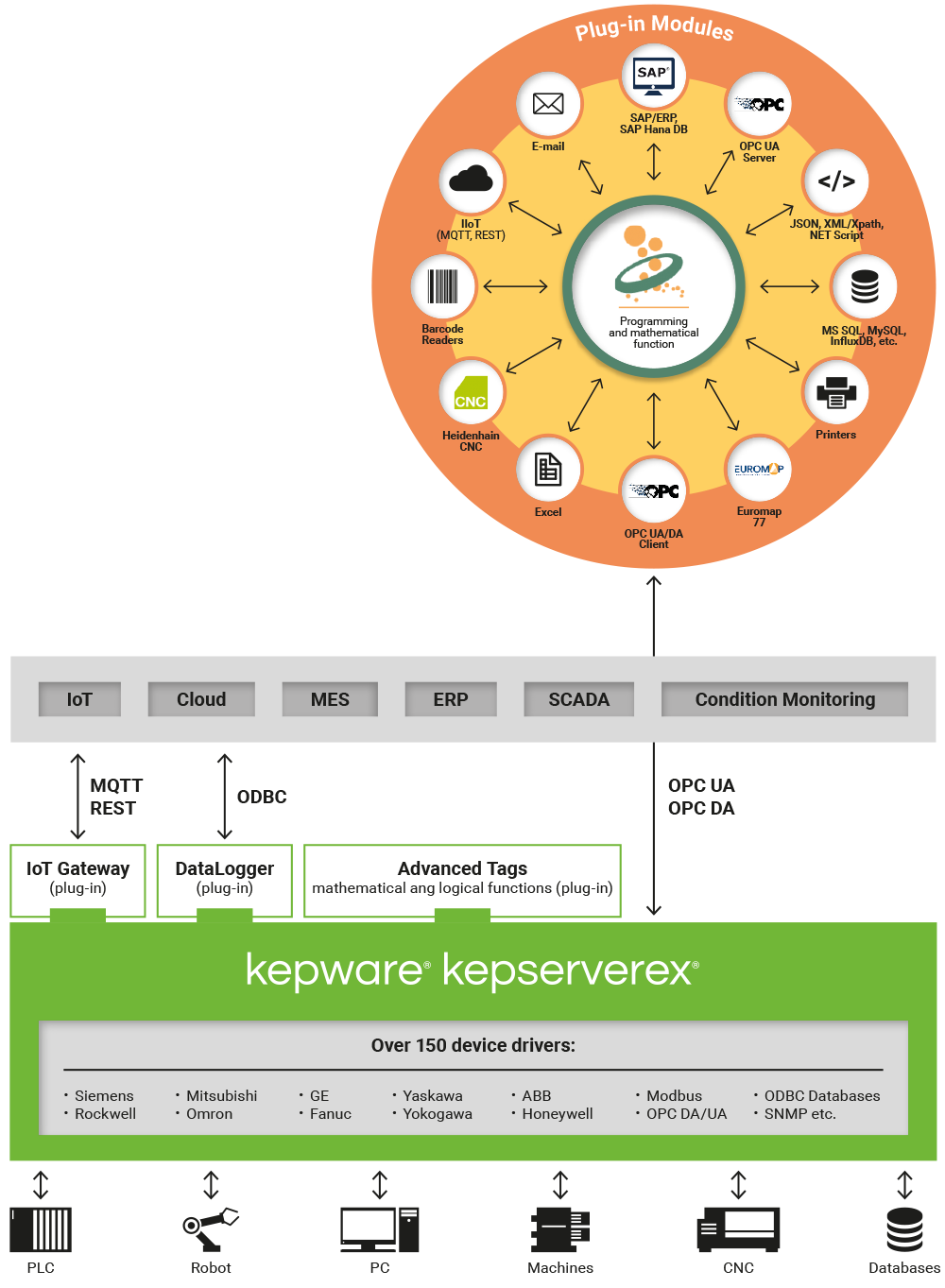
Includes OPC drivers for devices
- SLX100 series data acquisition systems
Supported communication protocols
- ISOLYNX (Serial and Ethernet)
Systemanforderungen für Kepware Server
Für den ordnungsgemäßen Betrieb von Kepware Server muss der Computer die Mindestanforderungen an Betriebssystem und Hardware erfüllen.
Unterstützte Betriebssysteme
- Windows 10 64-Bit – Editionen Pro und Enterprise
- Windows 10 32-Bit – Editionen Pro und Enterprise
- Windows 10 IoT Enterprise
- Windows 11
- Windows Server 2016 64-Bit
- Windows Server 2019 64-Bit
- Windows Server 2022
- Windows Server 2025
Minimale Hardwareanforderungen
- Prozessor: 2 GHz
- Arbeitsspeicher: mindestens 1 GB RAM; berücksichtigen Sie auch die Anforderungen des verwendeten Betriebssystems
- Freier Speicherplatz: mindestens 600 MB
- Netzwerkverbindung: Ethernet-Karte
- Bildschirm: Super-VGA-Auflösung von 800 × 600 Pixeln oder höher
Wichtige Informationen zur Installation
Kepware Server ist eine 32-Bit-Anwendung. Auf 64-Bit-Versionen von Windows wird sie über die Kompatibilitätsschicht WOW64 (Windows-on-Windows 64-Bit) ausgeführt.
Stellen Sie vor der Installation sicher, dass die neuesten Sicherheitsupdates für das Betriebssystem installiert sind.
Die Bereitstellung unter Windows Server Core wird nicht unterstützt.
Bei Verwendung eines Hardware-Lizenzschlüssels können unter Windows 11 und Windows Server 2022 unerwartete Fehler auftreten.
Frequently Asked Questions (FAQ) – Kepware Server
Glossary
Perpetual License / PRD – a one-time purchase license for permanent use of the software.
Subscription License / SUB – a time-limited subscription, typically for one year.
Support & Maintenance / ATT – a service that includes technical support, updates, upgrades, and assistance with licensing issues.
Activation ID – the license code used to activate, transfer, recover, and verify a license.
Emergency License / Emergency ID – a temporary license used to restore operation after a failure or another licensing issue.
Eligible Version – the latest Kepware Server version the license is entitled to based on its Support & Maintenance entitlement.
Support End Date – the date until which Support & Maintenance is active for the license.
Banked License – a license returned to the My Kepware licensing account and ready for a new activation.
License Utility – a licensing tool for activating, transferring, recovering, checking, and managing Kepware Server licences.
License Activation – assigning a license to a specific computer or server.
License Transfer – returning a license from the original computer to the My Kepware account so that it can be activated again on another device.
License Recovery – resolving a situation in which the license cannot be transferred in the standard way, for example due to a computer failure, damaged disk, or operating system reinstallation.
Deployment Status – information in the My Kepware portal that shows whether a license is activated, returned, or otherwise deployed.
Suite – a licensing package containing multiple drivers for a particular group of devices, manufacturers, or communication protocols.
Driver – a Kepware Server component that provides communication with a specific device or protocol.
Plug-in – a Kepware Server extension that adds additional functions, such as data storage, tag processing, or data publishing.
License Utility
License Utility is a licensing tool used to activate, transfer, recover, check, and manage Kepware Server licences. You can open it in the following ways:
- using the Kepware Server icon, or in older versions the KEPServerEX Administration icon, in the Windows notification area (System Tray) next to the clock – right-click the icon and select License Utility from the menu,
- using Windows Search – open the Start menu, type License Utility, and run the Kepware licensing tool shown in the search results; in older installations, you can also open it from the Start menu in the Kepware, Kepware Server, or KEPServerEX folder as License Utility,
- directly from the Kepware Server configuration using Tools → Launch License Utility.
A user name and password are required to launch the licensing tool. The administrator account password is set during Kepware Server installation.
The licensing tool opens the View Licenses window, which displays the licenses available on the given computer or server. For each license, you will see:
- Product – the product or function activated by the license,
- Activation ID – the unique license code,
- Support End Date – the support end date for the license,
- Status – the current license status.
Possible statuses include:
- Certificate – a certificate-based license, for example a license on a hardware key,
- Good – a valid and trusted software license,
- Broken – a damaged or invalid license; the status also displays the reason, such as a problem with the device binding, license storage, or system time,
- Invalid for Current Version – the license is not valid for the currently installed Kepware Server version,
- Expired – the time-limited license has expired.
After selecting a specific license, additional information may also be displayed:
- Type – the license type,
- Description – the product or package name,
- Tier – any license limitation based on the number of channels, devices, tag types, or tags,
- Expiration – the expiration date of a time-limited license, such as an emergency license.
Depending on the status of the selected license, the Repair, Activate, Renew, and Transfer functions may also be available for repairing, activating, renewing support, or transferring the license.
Licensing and Selection Before Purchase
What is the difference between a perpetual license and a subscription?
A perpetual license is purchased once. The purchase gives you the right to use the software permanently.
A new perpetual license must also include the first year of Support & Maintenance. Support is no longer mandatory for the second and subsequent years, but we recommend renewing it.
If support expires, the perpetual license does not automatically stop working. However, without active support you are not entitled to updates, upgrades, technical support, or license recovery in the event of a computer or server failure or in other situations.
A subscription license is a time-limited subscription. It is paid regularly, typically once a year, and technical support and access to updates are included for the duration of the subscription.
Note: some packages are currently available only as subscriptions.
Are Manufacturing Suite and Advanced Manufacturing Suite available only as subscriptions?
Yes. Manufacturing Suite and Advanced Manufacturing Suite are currently available only as subscriptions.
If you do not want a subscription license, we recommend checking whether the required drivers or more narrowly focused Suite packages are also available as perpetual licenses.
Instead of Manufacturing Suite / Advanced Manufacturing Suite, it may be possible in some cases to purchase individual drivers or more narrowly focused Suite packages as perpetual licenses. However, this option may be more expensive overall, and it is necessary to make sure that the purchased items cover all required protocols.
Example: Siemens Suite and Siemens Plus Suite are currently available both as subscriptions and perpetual licenses.
What does License Support & Maintenance cover?
Support & Maintenance is active support for a Kepware license. It is primarily used for:
- access to updates and new versions,
- use of technical support,
- access to fixes and security updates,
- assistance with licensing issues,
- license recovery after a computer or server failure,
- support with installation, license transfer, configuration changes, upgrades, and troubleshooting.
Active support is especially important when the license cannot be transferred to another computer or server in the standard way.
Typical situations include:
- the original PC or server has failed,
- the disk, motherboard, or other important hardware has failed,
- the operating system was reinstalled without returning the license first,
- the license does not work after hardware replacement or an upgrade,
- the license transfer from one PC to another failed,
- a virtual server was moved or restored from a snapshot,
- the original computer or server is no longer available,
- the license storage is corrupted,
- the license is not available for a new activation,
- operation must be temporarily restored using an emergency license.
If the original computer or server is still working, the correct procedure is first to transfer the license in the standard way, that is, return it to the My Kepware account and then activate it again on the new computer or server.
If this is no longer possible, license recovery through technical support is required.
Note: A license cannot be recovered without active support.
License Support & Maintenance is not an implementation service. If you need a complete Kepware Server configuration, tag structure design, communication setup, and full system testing, we can offer a paid technical consultation or project service.
For how long can Support & Maintenance or a subscription be purchased?
Support & Maintenance for a perpetual license can be purchased for 1, 2, or 3 years.
A longer period is particularly useful when you want to have support arranged further in advance, avoid price increases, and reduce the administration associated with annual renewals.
Benefits of a longer period:
- the option to lock in the current support price,
- less administration,
- certainty of support for a longer period,
- a reduced risk of missing a renewal,
- greater certainty of entitlement to updates and assistance with licensing issues.
Similarly, a subscription license can also be purchased for a longer period, up to 3 years. The main advantage here is again the option to lock in the price for a longer period in advance.
Suite Packages, Plug-ins, and Licensing
What is a Suite package and what is a plug-in? What is the difference?
1. A Suite is a package of drivers for Kepware Server. It usually covers a specific group of devices, a manufacturer, or a broader area of use.
Examples:
- Siemens Suite – a package for communication with Siemens devices,
- Manufacturing Suite – a broader package for common industrial devices,
- Advanced Manufacturing Suite – an extended package for more demanding projects.
2. A plug-in is an extension that adds another function to Kepware Server. It usually does not handle communication with a specific PLC itself, but rather how the data should be processed or published.
Typical examples include:
- storing data in a database,
- advanced tag processing,
- integration with higher-level systems,
- publishing data to IT or cloud applications.
We always recommend checking the availability of a specific plug-in based on the current product offering and the required license type.
In simple terms:
Suite = what Kepware Server will communicate with.
Plug-in = what else you need to do with the data.
What is the difference between Manufacturing Suite and the other Suite packages?
1. Manufacturing Suite is a broad package for standard manufacturing environments. It contains more than 100 drivers for commonly used PLCs, CNC machines, robots, and other industrial devices. Kepware Server also makes the collected data available to client applications via OPC UA and OPC DA. Manufacturing Suite is therefore suitable, for example, for connecting production equipment to SCADA, HMI, MES, historians, or ERP systems.
Note: Manufacturing Suite does not include all drivers available for Kepware Server. Some specialized drivers and the Universal Device Driver (UDD) are included only in Advanced Manufacturing Suite.
Manufacturing Suite also does not include the full functionality of the Advanced Tags plug-in, IoT Gateway for publishing data via MQTT and REST, or DataLogger for storing data in databases via ODBC. It does, however, include the ODBC Client Driver, which allows a database to be used as a communication source.
2. Other Suite packages are usually focused on a specific area, manufacturer, or type of communication. For example, Siemens Suite is intended for communication with Siemens devices, while Modbus Suite is intended for communication via Modbus. If you need to communicate with a larger number of devices from different manufacturers, Manufacturing Suite may be more practical than purchasing several separate packages.
3. Advanced Manufacturing Suite includes all drivers from Manufacturing Suite plus additional specialized drivers, for example for power and utilities, oil and gas, buildings, and infrastructure. It also includes the Universal Device Driver (UDD), database logging via ODBC, and tag-linking functions.
Note: Advanced Manufacturing Suite does not include IoT Gateway for MQTT and REST integrations. It also does not include the full functionality of the Advanced Tags plug-in, such as mathematical, logical, and analytical functions.
What is the difference between Siemens Suite and Siemens Plus Suite?
1. Siemens Suite is the basic driver package for standard communication with Siemens devices. It includes drivers for both older and current Siemens protocols, such as S7-200, S7-300, S7-400, S5, MPI, PPI, Siemens TCP/IP Ethernet, and serial communication. The Siemens TCP/IP Ethernet driver also supports communication with S7-1200 and S7-1500 PLCs.
2. Siemens Plus Suite includes everything in Siemens Suite and additionally adds the OPC UA Client driver and the Siemens S7 Plus Ethernet driver. We recommend it mainly for projects with S7-1200 and S7-1500 PLCs where you need communication via S7 Comm Plus, work with symbolic tags, access to optimized data blocks, automatic loading or generation of tags from the PLC, or communication with devices that use a higher security level.
In practice:
- Siemens Suite → standard Siemens communication, older PLCs, conventional Ethernet, and serial protocols; it also supports basic communication with S7-1200 and S7-1500 PLCs via Siemens TCP/IP Ethernet.
- Siemens Plus Suite → more modern projects with S7-1200 and S7-1500 PLCs, TIA Portal, symbolic addressing, optimized data blocks, automatic loading or generation of tags, communication via S7 Comm Plus, and connection to devices with a higher security level.
Selecting a Package, Driver, and Functions for a Project
I have a specific device. Which Kepware package do I need?
To make the correct selection, it is important to know the communication protocol, connection method, and required communication direction. The device name alone is usually not enough.
Typical approach:
- A PLC or device from one manufacturer → a specific Suite package or standalone driver is usually sufficient, for example Siemens Suite, Allen-Bradley Suite, or Modbus Suite.
- Multiple different PLCs and common industrial devices → Manufacturing Suite often makes sense.
- Many different devices, specialized protocols, tag linking, or database logging → we recommend considering Advanced Manufacturing Suite.
- Publishing data from Kepware Server to MQTT, REST, or a cloud application → this is typically handled using the IoT Gateway plug-in or another suitable product.
- Logging values from machines and technologies to an SQL database → this typically uses the DataLogger plug-in or Advanced Manufacturing Suite if data storage via ODBC is sufficient.
- Using a database as a data source for Kepware Server → for example, reading recipes, production orders, limit values, or parameters from a database. In this case, the ODBC Client Driver may be more suitable.
We need a redundant solution with Kepware Server. Which drivers or licenses are required?
It depends on what exactly needs to be redundant. A backup communication path to a device is handled differently from a redundant pair of Kepware Servers for a higher-level system.
1. Redundant communication path or redundant device
If you need a redundant communication path or a redundant pair of devices, you can use the Media-Level Redundancy Plug-In feature. It is not a separately purchased add-on, but an optional component of Kepware Server. During installation, it can be included by selecting Full Installation or selected separately as an optional component.
The Media-Level Redundancy Plug-In supports, for example:
- a redundant communication path – communication with the same device through multiple paths,
- a redundant pair of devices – communication with two redundant devices.
The Media-Level Redundancy Plug-In is available for supported drivers operating in client mode. Typical examples include serial communication, Ethernet, Modbus Plus, or the OPC UA Client Driver. For each specific driver, it is always necessary to verify whether this type of redundancy is supported.
2. Redundant pair of Kepware Servers
If you are designing a redundant pair of Kepware Servers for a higher-level system, this is not simply a matter of selecting one driver or plug-in. The entire architecture must be designed according to the system that consumes the data, such as SCADA, MES, a historian, or an OPC UA client.
If two separate Kepware Servers are to run at the same time, an appropriate license is generally required for each installation.
For new projects, we recommend reviewing the redundancy design individually according to the specific architecture, required availability, drivers used, and required number of licenses.
Can Kepware Server store data in a database?
Yes. The DataLogger plug-in is used to store data from Kepware Server in a database.
DataLogger writes data from Kepware Server to ODBC-compatible databases, such as SQL databases.
It also supports more advanced functions, including:
- starting logging based on conditions,
- limiting logging when value changes are small,
- importing and exporting configuration in JSON format,
- temporary data storage if the database connection is interrupted (Store and Forward).
Note: DataLogger is used to write data from Kepware Server to a database.
If Kepware Server should instead read values from a database or use the database as a communication source, the ODBC Client Driver may be more suitable.
Changing or Replacing a Purchased License
I purchased a license for a driver package, but after a few days I found that I need a different package. What should I do?
Contact us as soon as possible and send us the order number, the name of the incorrectly purchased package, and the name of the package you need instead.
The next steps depend on whether it is a subscription license or a perpetual license.
1. Subscription license
For a subscription license, the key factor is the price of the requested license.
a) If the requested license has the same or a higher price than the originally purchased license, the license can be replaced during the subscription term.
If the price is the same, you pay no difference and receive a new license with the same expiration date as the original license.
If the price is higher, the price difference is charged for the period from the date of the change until the end of the original subscription term.
b) If the requested license has a lower price than the originally purchased license, the license can be returned within 30 days of the order date.
2. Perpetual license
For a perpetual license, an exchange or return can be handled within 30 days of the order date.
a) If the incorrectly purchased package and the requested package have the same price, the license can be exchanged.
b) If the packages have different prices, the incorrectly purchased license is returned and a credit note is issued. The correct package can then be purchased.
We have been using the license for several months, but have now found that we need a different driver package. Can the original license be exchanged for a new one?
It depends on whether it is a subscription license or a perpetual license.
1. Subscription license
A subscription license can be exchanged for another license at any time during the subscription term, provided that the subscription value remains the same or higher.
This means that the original license can, for example, be exchanged:
- for another package with the same price,
- for a more expensive package with payment of the difference until the end of the current term,
- or for another combination of licenses, provided that the total subscription value does not decrease.
Example: within a subscription, it may in some cases be possible to exchange two standard driver suites, such as Modbus Suite and Siemens Suite, for one Manufacturing Suite.
2. Perpetual license
With a perpetual license, you purchase a specific license that can no longer be exchanged for another license after 30 days from purchase. If you need a different package, a completely new license must be purchased.
The only current exception is an upgrade from Siemens Suite to Siemens Plus Suite.
In this case, you can purchase a perpetual upgrade to Siemens Plus Suite together with one year of Support & Maintenance for Siemens Plus Suite. If the original Siemens Suite still has active support, the unused prorated portion will be refunded.
Technical Questions and Deployment Options
Is there a Kepware version for Linux?
Yes, but it is not a direct replacement for the standard Kepware Server for Windows.
The Linux version is called Kepware Edge and is sold as part of the Kepware+ for Linux package. Kepware Edge runs as a container and is intended mainly for lightweight, scalable deployment of industrial communication on Linux and for centrally managed installations across multiple locations.
Compared with the standard Kepware Server for Windows, it has a more limited range of supported protocols. These include, for example, EtherNet/IP, Modbus Ethernet, Siemens Industrial Ethernet, Siemens S7 Plus, OPC UA Client, and Mitsubishi Ethernet.
Kepware Edge is available only as a subscription license, not as a perpetual license. Individual drivers for Kepware Edge are not sold separately.
If you want to run Kepware on Linux, we recommend assessing it individually. First, it is necessary to verify whether Kepware Edge supports the required protocols, project architecture, and deployment method.
Does Kepware Server limit the number of communicated values or connected devices?
Most Kepware products do not have a fixed general limit on the number of tags or connected devices. However, some products, packages, or licenses may be offered in tiers based on the number of devices or tags.
In practice, the main consideration is the technical limits of the specific project. Important factors include:
- computer or server performance,
- the number of drivers and communication channels,
- communication speed with the devices,
- the required data read rate,
- the number of connected clients,
- the type of protocol used,
- the overall project architecture.
For larger projects, we recommend a technical review of the design. The number of tags alone is not sufficient to reliably assess the performance and stability of the entire installation.
Managing Support, Subscriptions, and License Information
I have an older perpetual Manufacturing Suite license. Can I continue purchasing support for it?
If you already own Manufacturing Suite as a perpetual license, the license does not cease to exist simply because the product is now sold only as a subscription. However, active license Support & Maintenance is required for updates, new versions, technical support, and assistance with license recovery.
For older perpetual Manufacturing Suite licenses, it is important to monitor the support end date. Support can be reinstated only within 12 months of the date on which the original support expired. After this period, support for the original perpetual license can no longer be reinstated.
In that case, however, it may be possible to verify the option of transitioning to a subscription license under preferential terms.
For older licenses, we always recommend checking the specific Activation ID. This can be used to determine, in particular:
- which product is associated with the license,
- until when License Support & Maintenance is valid,
- which version you are entitled to according to the Eligible Version,
- whether the license is activated on a computer or server or has been returned to the licensing account as Banked,
- the currently available options for extending support, reinstating support, or taking other licensing steps.
My License Support & Maintenance has expired. What options do I have?
It depends on how long the support for the Kepware Server perpetual license has been expired.
1. Support expired less than 12 months ago
If support expired less than 12 months ago, it can usually still be reinstated. However, the new support period does not begin on the order date. It always continues from the original support expiration date.
Example: if support expired on March 20, 2026 and the customer renews it only on July 13, 2026, the extension is calculated from the original expiration date. The new support period therefore runs from March 20, 2026 to March 19, 2027.
Support can also be extended for a longer period, for example 2 or 3 years. In the example above, it would then remain valid until March 19, 2028 or March 19, 2029.
After reinstatement, you are again entitled to updates, new versions, technical support, and assistance with license recovery in the event of licensing issues.
2. Support has been expired for more than 12 months
If support has been expired for more than 12 months, support for the original perpetual license can no longer be reinstated.
In this case, the usual options are:
- transitioning to a subscription license,
- purchasing a new license.
To verify the next steps, send us the specific Activation ID. We will use it to check the current license status, support end date, and available options.
How can I switch from a perpetual license to a subscription license?
Switching to a subscription license may be suitable mainly if you have an older perpetual license without active support and support for that license can no longer be reinstated, or if you want the license to renew automatically so that you do not have to monitor regular support renewals yourself.
Your perpetual license does not expire by itself. However, without active License Support & Maintenance, you may not be entitled to updates, new versions, technical support, or license recovery if there is a problem with the computer or server.
If you are considering switching from a perpetual license to a subscription license, send us the Activation ID. We will use it to verify the specific license, its status, and the available transition options.
Can I align Support & Maintenance renewal dates for multiple Kepware perpetual licenses?
Yes, for multiple Kepware perpetual licenses it is possible to individually verify whether Support & Maintenance renewals can be aligned to a single date.
This is particularly practical if you have multiple licenses purchased at different times and do not want to handle a separate support renewal for each license every year.
After alignment, administration can be simpler:
- one support renewal date,
- one order,
- one invoice,
- more transparent license management.
The possibility of alignment must be verified based on the specific Activation IDs and the manufacturer's current terms.
If you are considering alignment, send us a list of the licenses and we will verify the next steps.
I have a subscription license. How can I renew, modify, or cancel it?
Subscription licenses are handled according to the specific license and its renewal date.
By purchasing a subscription license, the customer agrees to the manufacturer's licensing terms, including automatic renewal of the subscription for the next term unless otherwise agreed in good time.
Before the renewal date, we will send you a quotation for the next term.
If you need to modify or cancel the subscription license, please contact us no later than 45 business days before the renewal date of the current subscription. We will verify the license status and the available next-step options.
Typical changes include:
- adjusting the number of licenses,
- adjusting the number of plug-ins,
- terminating the subscription license.
If, after agreement with FOXON, you decide to terminate the subscription license, the software may be used only until the end of the current license term. The license will no longer be valid after that date.
After terminating the Kepware Server subscription, the license must be returned in accordance with the manufacturer's licensing procedure, no later than 10 days after the subscription expires. The license is returned to the My Kepware portal.
If you are unsure which license type you have or when your subscription expires, send us the Activation ID and we will verify the next steps.
Where can I find information about my Kepware Server license?
You can verify license information in three ways:
- in the License Utility licensing tool,
- in the My Kepware portal,
- through FOXON using the Activation ID license code.
1. License Utility
Basic license information is also available in License Utility. Instructions for opening it are provided in the separate “License Utility” section.
In License Utility, you can verify which product is licensed, its Activation ID, the support end date, the current license status, and, where applicable, the license type, its limitations, or its expiration date.
2. The My Kepware portal
Another way to verify Kepware Server license information is through the My Kepware portal. In the License Information section, you can find, for example:
- Deployment Status – the license deployment status, showing whether the license is activated, returned to the licensing account, or otherwise available,
- Product Description – the name or description of the licensed product,
- Emergency ID – the emergency license identifier, if available for the given license,
- Eligible Version – the latest Kepware Server version to which the license is entitled,
- Support & Maintenance / Valid through – the date until which Support & Maintenance is valid for the license.
3. License verification through FOXON
If you are unsure about the license status or the meaning of any of the information, send us the Activation ID and we will help you verify everything. Contact us at support@foxon.eu.
What is the latest Kepware Server version I can upgrade to?
It depends on the specific license and the validity of its License Support & Maintenance. Two values are important when verifying upgrade entitlement:
- Eligible Version – the latest Kepware Server version to which your license is entitled,
- Support End Date – the date until which Support & Maintenance is active for the license.
This information can be verified:
- in the License Utility licensing tool,
- in the My Kepware portal under License Information,
- or you can send us the Activation ID and we will verify the available version for you.
Before upgrading between major versions, for example from an older KEPServerEX 6 to Kepware Server 7, we recommend checking in particular:
- project compatibility,
- the supported operating system,
- the drivers used,
- OPC UA certificates,
- the impact on connected client applications,
- the availability of a current project backup,
- the option to return to the original version if a problem occurs during the upgrade.
For larger or production-critical installations, we recommend planning the upgrade first and not carrying it out directly on the production server without preparation.
How do I update newly purchased or renewed License Support & Maintenance in Kepware Server?
If you purchase or extend License Support & Maintenance, the license information in Kepware Server must also be updated. This is done using the Renew Support and Maintenance function in the License Utility licensing tool.
Online procedure
- Open the License Utility licensing tool.
- Click Renew and go to Renew Support and Maintenance.
- Sign in with the My Kepware account associated with the license.
- Click Renew.
- The licensing tool checks the licensing server to determine whether a support update is available for the license.
- If an update is available, it is downloaded automatically and the relevant license is updated.
- After completion, click Next and verify the updated license and support information under View Licenses.
Offline procedure
- Open the License Utility licensing tool.
- Click Renew and go to Renew Support and Maintenance.
- Click Import.
- Select the support renewal license file you received from us.
- After the import is complete, the licensing tool automatically returns to View Licenses, where you can verify the updated license and support information.
Activation, License Transfer, and Licensing Issues
How do I activate a newly purchased Kepware Server license?
You activate a newly purchased Kepware Server license using the licensing tool on the computer or server where Kepware Server will run. To activate a software license, you need the license code provided after purchase.
Online activation
Online activation is the simplest procedure if the target computer or server has internet access.
- Open the License Utility licensing tool.
- Click Activate.
- Select software license activation and click Next.
- Enter the Activation ID. Up to 100 license codes can be entered at once, for example by pasting them in comma-separated format.
- Under Installation Location Details, enter installation information as needed, such as the server name or description.
- Under Activate Using the Internet, enter the user name and password for the My Kepware account.
- Continue by clicking Next.
- The licensing tool connects to the licensing server and performs the activation. The activation status is displayed, including any errors or warnings.
- After activation is complete, click Next again. The licensing tool returns to View Licenses, where you can verify that the license is listed as active and has the status Good.
Offline activation
Offline activation is used when the target computer or server does not have internet access.
- Open the License Utility licensing tool on the target computer or server.
- Click Activate.
- Select offline software license activation and click Next.
- Enter the Activation ID. Up to 100 license codes can be entered at once, for example by pasting them in comma-separated format.
- Under Installation Location Details, enter installation information as needed, such as the server designation, location, or description.
- Click Save to File.
- The licensing tool creates the activation request file activation_request.txt. Save it and note its location.
- Transfer this file to a computer with internet access.
- Open the My Kepware portal and sign in or create an account as needed.
- Upload the activation_request.txt file and submit the request.
- The portal creates the response file response.txt. Download it and transfer it back to the target computer or server.
- In License Utility, return to the software license activation dialog.
- Under Import the Activation Response File, click Import File and select the downloaded response.txt file.
- After completion, return to View Licenses and verify that the license is listed as active and has the status Good.
The file names activation_request.txt and response.txt are the default names and can be changed.
Note: Multiple licenses for the same product or the same driver cannot be activated on the same computer or server. A new license for the same product may overwrite the existing license.
How do I transfer a Kepware Server license from one PC to another?
A Kepware Server license is not transferred directly from one computer to another. First, the license must be returned from the original computer to the My Kepware account and then activated again on the new computer or server.
Online license transfer
Use online transfer if the original computer or server has internet access.
- On the original computer or server, open the License Utility licensing tool.
- Go to View Licenses.
- Select the license you want to transfer and click Transfer.
- Enter the user name and password for the My Kepware account under which the license was obtained.
- Continue by clicking Next.
- Confirm the warning that the transfer will deactivate the license on the original computer.
- The licensing tool sends the request to the licensing server and displays the transfer progress, including any errors or warnings.
- After completion, click Next again. The licensing tool returns to View Licenses.
- The license has now been returned to the My Kepware account and is ready for a new activation.
- Install Kepware Server on the new computer or server and activate the license again using the original Activation ID.
Offline license transfer
Use offline transfer if the original computer or server does not have internet access.
- On the original computer or server, open the License Utility licensing tool.
- Go to View Licenses.
- Select the license you want to transfer and click Transfer.
- Click Save to File.
- Confirm the warning that creating the file will deactivate the license on the original computer.
- The licensing tool creates the transfer_request.txt file. Save it and note its location.
- Transfer this file to a computer with internet access.
- Sign in to the My Kepware portal.
- Upload the transfer_request.txt file and submit the request.
- After successful processing, the license is returned to the My Kepware account and is ready for a new activation.
- On the new computer or server, activate the license again using the original Activation ID.
Important: The transfer_request.txt file is not imported on the new computer. It is used only to return the license to the My Kepware account.
Note: The license is deactivated on the original computer as soon as the transfer_request.txt file is created. If the file is not subsequently processed successfully in the My Kepware portal, the license will not be usable on either the original or the new computer.
What if the original PC or server is no longer available?
If the original computer or server is no longer available, for example due to a disk failure, server failure, or operating system reinstallation without returning the license first, a standard license transfer is no longer possible.
In this case, license recovery through technical support is required – contact us at support@foxon.eu. In critical situations, operation can be temporarily restored using an Emergency ID.
What is an Emergency License / Emergency ID and what is it used for?
An emergency license is a temporary license linked to the purchased Activation ID.
It is intended for exceptional situations, for example when a computer, server, or system failure occurs outside standard business hours and the regular license cannot be used immediately.
Emergency activation restores Kepware Server operation only for a limited period, typically 7 days. This allows the system to be temporarily put back into operation while standard license recovery is arranged.
An emergency license is not a replacement for a regular license or a long-term solution. Therefore, after activating it, contact us as soon as possible at support@foxon.eu so that we can resolve the situation.
An error occurred during the license transfer. The license does not work and I have active support. What should I do?
We recommend the following procedure:
- Do not continue with repeated attempts without verification. Repeated attempts may make the situation more complicated.
- Prepare the Activation ID, a screenshot of the error, and information about the license status in the License Utility licensing tool.
- If you used offline activation or an offline license transfer, also prepare the related files, such as activation_request.txt, response.txt or transfer_request.txt.
- Contact us at support@foxon.eu.
- If operation is at risk outside business hours, an Emergency ID may be used depending on the situation. It temporarily restores operation, typically for 7 days.
An emergency license is not a long-term solution. It serves only as a temporary emergency activation so that operation can be restored for a short time and the proper license recovery can then be completed. Therefore, after activating it, contact us as soon as possible at support@foxon.eu so that we can resolve the situation.
An error occurred during the license transfer. The license does not work and I do not have active support. What should I do?
First, we recommend checking whether the standard license transfer was completed and whether the license has the status Banked in the My Kepware portal. This means that it has been returned to the licensing account and is ready for a new activation.
If the license has the status Banked, it can be activated again on the new computer or server.
If the license is damaged, cannot be returned, or the original computer or server is no longer available, license recovery is not possible without active Support & Maintenance.
In this case, we recommend checking:
- whether License Support & Maintenance can be reinstated,
- the option of switching to a subscription license,
- the option of purchasing a new license.
To verify the next steps, send us the Activation ID, a description of the error, and information on whether the original computer or server is still available.
We upgraded the server or PC hardware and the license no longer works. What should we do?
A Kepware Server software license is linked to a specific computer or server. Replacing hardware, changing virtualization, moving a virtual server, or making a major system modification may break the license binding.
Before a planned change, we recommend the following procedure:
- On the original computer or server, open the License Utility licensing tool.
- Return the license to the My Kepware account using the license transfer function.
- After completing the change, or on the new computer/server, activate the license again using the original Activation ID.
If the problem has already occurred and the license does not work:
- you have active License Support & Maintenance → contact FOXON to arrange license recovery. If operation is at risk outside business hours, an emergency license may be used depending on the situation,
- you do not have active License Support & Maintenance → contact FOXON and verify whether support can still be reinstated. If not, a new license must be purchased or a transition to a subscription must be arranged.
An emergency license is used only to restore operation temporarily, typically for 7 days. It is not a replacement for a regular license or a long-term solution. Therefore, after activating it, contact us as soon as possible at support@foxon.eu so that we can resolve the situation.
The computer or server running Kepware Server has failed. The license does not work. What should I do?
If you have active Support & Maintenance, license recovery is handled through FOXON technical support.
If operation is at risk outside business hours, an Emergency ID may be used depending on the situation. It temporarily restores operation, typically for 7 days. During this time, standard license recovery must be completed.
If you do not have active support, we recommend checking whether it can still be reinstated. If not, it is usually necessary to purchase a new license or switch to a subscription.
To verify the next steps, send the Activation ID, a description of the failure, and information on whether the original computer or server is still available to support@foxon.eu.
Older Installation Files and Documentation
Where can I find older versions of Kepware Server / KEPServerEX?
Older versions of Kepware Server and KEPServerEX are available primarily in the My Kepware portal, usually under Legacy Products.
Public pages with documentation and release notes for older KEPServerEX versions, including version 6.x, are also available.
Before installing an older or newer version, always verify which version your license entitles you to use. The key values are Eligible Version and Support End Date.
If you are unsure which version you can use, send us the Activation ID and we will verify the correct procedure.
Where can I find Kepware Server manuals?
Current Kepware Server manuals are available on the Kepware User Manuals page:
https://www.ptc.com/en/support/help/kepware_user_manuals
This page includes documentation for Kepware Server, the License Utility licensing tool, individual drivers, plug-ins, and other Kepware products.
Older documentation and materials for previous versions of Kepware and KEPServerEX are available here:
https://www.ptc.com/en/support/help/kepware_legacy_doc_resources
If you are unsure which documentation corresponds to your version, first verify the specific Kepware Server version and your license entitlement according to the Eligible Version.

KEPServerEX: Last Chance to Save on Support Purchases
Are you using a perpetual license of the KEPServerEX software to collect data from machines? Read our 3 recommendations in response to the changes to the Update & Technical Support (hereafter referred to as Technical Support) purchase terms for perpetual licenses that will take effect on January 1, 2025. We know that expert technical support and upgrades to new software versions are important. Take advantage of the opportunity to purchase Technical Support at a volume discount before the end of the year or to convert your perpetual license to a subscription (Subscription Conversion) under unique conditions. The Subscription Conversion license already includes Technical Support.

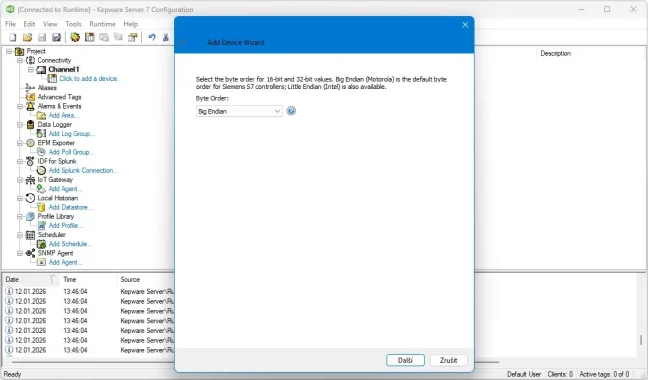
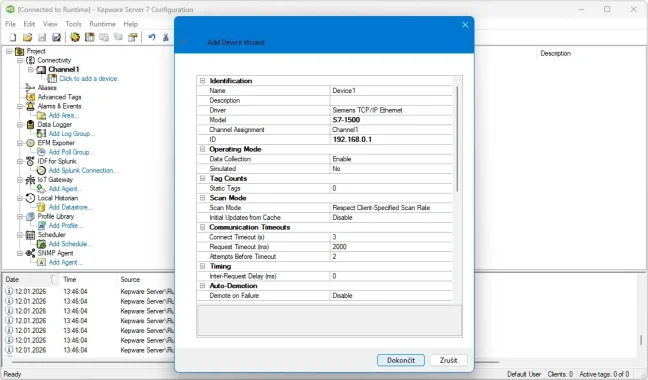
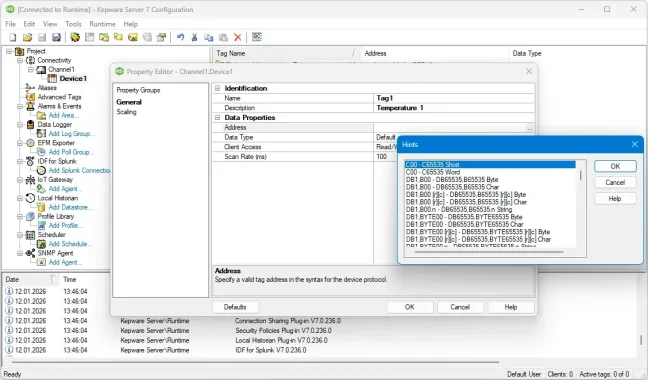
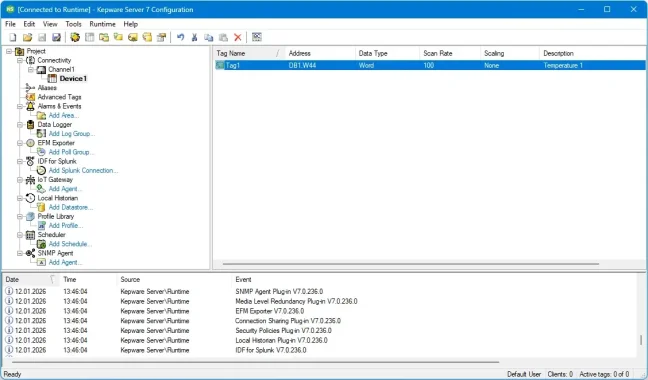
How to set up OPC Server KEPServerEX in 5 minutes
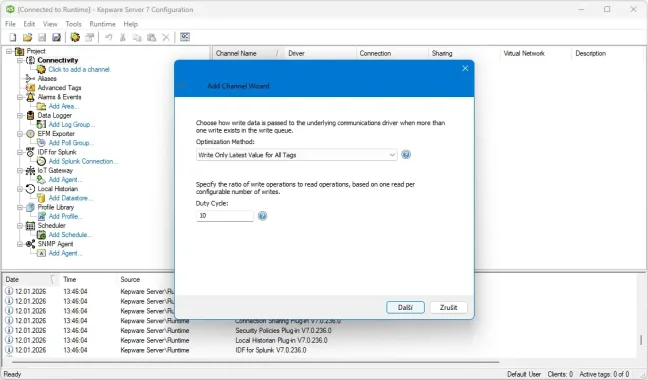
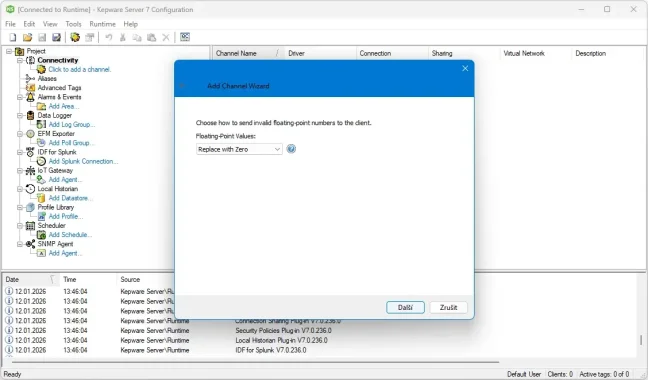
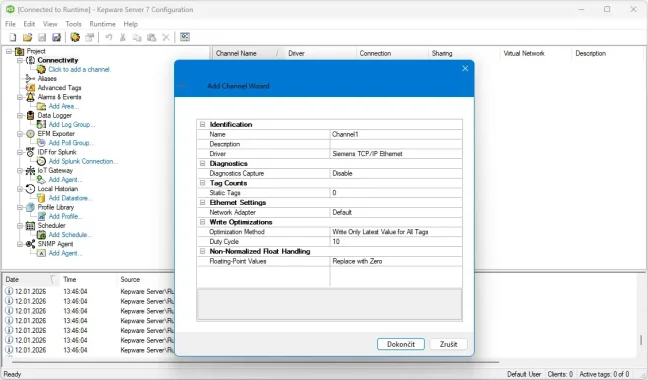
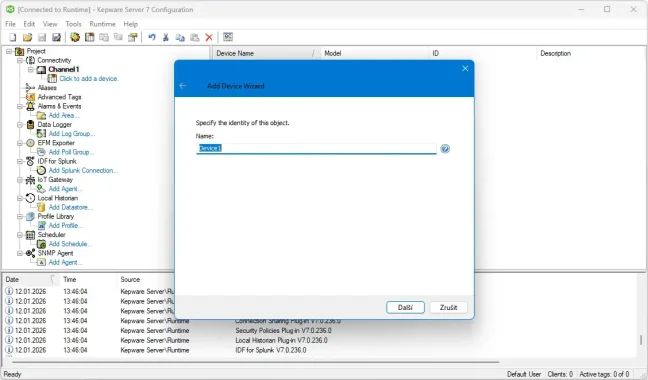
Getting started with KEPServerEx and want to do a basic configuration of this OPC Server in 5 minutes? Watch the video demonstration where we will walk you through the basic setup so that you can start reading data from the connected PLC directly into the OPC Server.
Highlighted items are mandatory.

ODBC-Datenlogger-Plugin für Kepware Server OPC-Server
774,69 EUR Inkl. MwSt.

TOP 30 OPC UA and OT/IT Data converters in a Single OPC Router License
2 368,10 EUR Inkl. MwSt.
TOP 100 OPC UA/DA-Server in einer Kepware-Server-Lizenz, Manufacturing Suite
1 904 EUR Inkl. MwSt.
Accessories2
ODBC-Datenlogger-Plugin für Kepware Server OPC-Server
774,69 EUR Inkl. MwSt.
TOP 30 OPC UA and OT/IT Data converters in a Single OPC Router License
2 368,10 EUR Inkl. MwSt.
Alternatives1
TOP 100 OPC UA/DA-Server in einer Kepware-Server-Lizenz, Manufacturing Suite
1 904 EUR Inkl. MwSt.